

To organize baby photos on iPhone, name your baby in People & Pets, pin their collection, make albums for months or moments you care about, rate the keepers, add keywords, and search by name and date. Photos does the face matching, but albums, ratings and keywords are manual, and the app only sees the photos on your own iPhone.
The steps below use the Photos app in iOS 27 and follow Apple's iPhone User Guide, checked on 15 Oct 2026. Menu names can differ on older versions of iOS.
What are the steps to organize baby photos in the Photos app?
Start with the steps that let Photos do the most work for you, then add the manual ones you have time for.
Name your baby in People & Pets. Open a photo of your baby, swipe up, tap the face with a question mark, tap Edit Name and Photos, then Name This Person, according to Apple's guide to finding and naming people. Apple says that once you name someone, Photos names them in other photos and videos in your library. If a sibling's photo shows up under your baby, open that photo, swipe up, tap your baby's face, then tap This is Not [name]. What it can't do. People & Pets only covers the photos in your own library, so your partner's photos aren't in it unless you share a library.
Mark your baby as a favorite and pin their collection. In People & Pets, touch and hold your baby's key photo and tap Favorite. Then, in Collections, touch and hold the collection you open most and tap Pin, so it sits at the top of the screen, as Apple's guide to browsing collections describes. What it can't do. Pinning only changes where things sit. It doesn't sort anything new.
Make a family group. In People & Pets, tap the button next to Groups, then Create New Group, and choose your baby and both parents, following Apple's guide to group photos. The group collects photos where those people appear together. What it can't do. A group only finds photos where Photos recognizes everyone you chose.
Make albums for the moments you'll look for. Go to Collections, tap Albums, tap the add button, then New Album, according to Apple's guide to photo albums. A simple setup is a folder for each year with an album for each month, or albums for "First foods" and "Bath time." Apple says deleting an album leaves the photos in your library. What it can't do. An album holds only the photos you add to it. It won't fill itself as new photos arrive.
Rate the keepers. In iOS 27, you can rate photos from 1 to 5 stars. Turn on Show Ratings Controls from your profile in Collections, then open a photo and tap a star rating, as Apple's guide to star ratings explains. Later, filter the library by Rating to see only your best shots. What it can't do. You rate each photo yourself, one at a time.
Add keywords and captions for Firsts. Open a photo, swipe up, tap Add Keywords, and type something like "first tooth," following Apple's guide to keywords. Apple says the caption field on each photo also makes it easier to find in Search. What it can't do. Keywords and captions are typed one photo, or one selection, at a time.
Search by name and date. Tap the search button and type your baby's name, a month or a year, according to Apple's guide to searching photos. Sort the results by Captured to see them in the order they were taken. On an iPhone 15 Pro, iPhone 15 Pro Max or iPhone 16 or later with Apple Intelligence on, you can also describe the photo, such as your baby's name and "in the bath", according to the same guide. You can also swipe down on the library and tap Years or Months to browse by date, as Apple's guide to finding photos by date describes. What it can't do. Search shows dates, not your baby's age. Apple's guides don't describe a way to browse by "4 months old."
Let Memories bring photos back. In Collections, open Memories. Apple's guide to memories says they feature a significant person, pet, place or event from your library. Touch and hold one you love and tap Add to Favorite Memories. What it can't do. Photos chooses what goes in each memory and when it appears.
Merge duplicates. In Collections, tap Utilities, then Duplicates, then Merge, according to Apple's guide to merging duplicates. This helps after months of saving photos your partner texted you. What it can't do. The Duplicates collection only appears when Photos finds duplicates in your library.
How long does it take to organize a big baby photo library?
Naming your baby takes a minute. Albums, ratings and keywords take much longer, because you decide on each photo yourself.
We couldn't find a study that timed this. A 2025 Talker Research survey of 2,000 parents of babies aged 9 to 24 months found the average parent had nearly 2,000 photos and videos of their child (checked 15 Oct 2026). At 2 seconds a photo to decide whether it belongs in an album or gets a rating, 2,000 photos take about 67 minutes. At 5 seconds a photo, they take nearly 3 hours. These are our own estimates for one parent's phone. Our post on how many photos parents take in the first year covers why the count grows so fast.
Doing it in small pieces works better than one long session. Once a month, swipe down on the library, tap Months, and open the month. Months shows a curated selection, so tap All to see every photo. Rate five or ten and add the best to that month's album.
What can't the Photos app do for a baby's photos?
The Photos app organizes one library at a time. Your partner's photos of the same baby stay on their phone until you share them, and the steps above don't change that. Apple's sharing features cover that part. Our guide to iCloud Shared Library vs Shared Album compares the two, and how two parents can keep one set of baby photos covers every option, including Google Photos.
The Photos app also has no place for the story around a photo beyond a caption. It doesn't keep a list of Firsts, a letter for later, or your baby's age next to each picture.
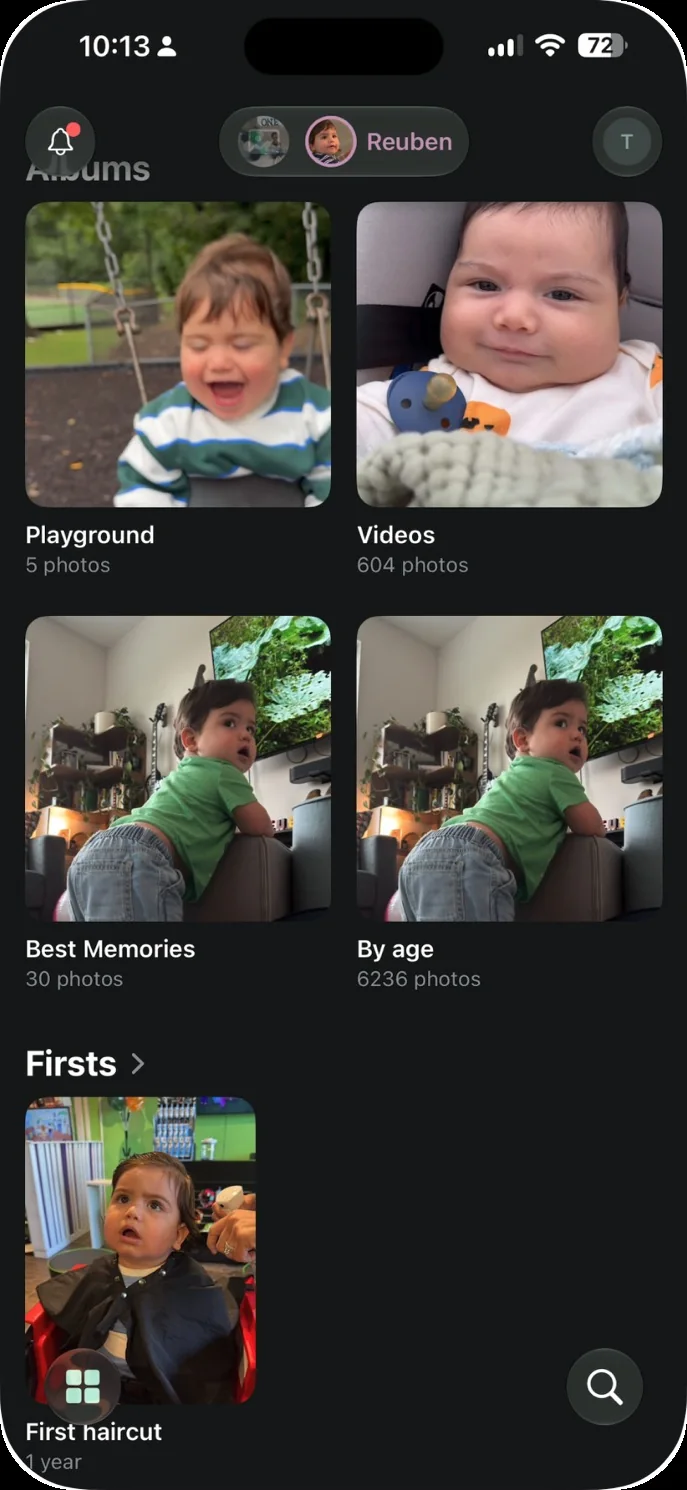
The app we make: Our Little World is a private baby book app for iPhone and iPad that does much of the work in steps 1, 4 and 7 once you confirm your child's face from a few photos. It finds your child in the photos on your iPhone and lays them out month by month, with their age on every photo. Two parents share one family space, and you can add Firsts, letters and voice notes to the photos they belong to. Read more about it as a digital baby book, or, if your baby is only a few weeks old, for new parents. Our Little World isn't for Android users, for families who want a printed book, or for anyone who needs a free plan.